For parents

Your child's screen time, understood.

Insight, not surveillance.

See how your child's phone fits around school, bedtime and the rest of their day, graded so you know what is worth a conversation. On your own iPhone, with nothing to install on theirs.

What it is

A family screen time app that explains, rather than polices.

ThirdLife is an iPhone app that shows parents what their child's phone use means, not just how much there was. It reads Apple's Screen Time through Family Sharing on the parent's phone, scores each day out of 100 across four rings, and lays the phone beside school hours and bedtime. What it finds is graded by how much it matters. It does not read messages, browsing or location, and nothing about your child leaves your phone.

On your phone

You, and each of your children, in one place.

Your children sit beside "Me" at the top of ThirdLife on your own phone. Tap a name and the app follows: their score for the day, the four rings that shape it, and a plain-language read of what happened.

  • Connect: time with people
  • Balance: active use against consumption
  • Focus: unbroken attention
  • Rest: a quiet phone around sleep

Where there is too little to go on, a ring shows a dash rather than a guess. Connect is only scored for children on days with at least five minutes of messaging or calls.
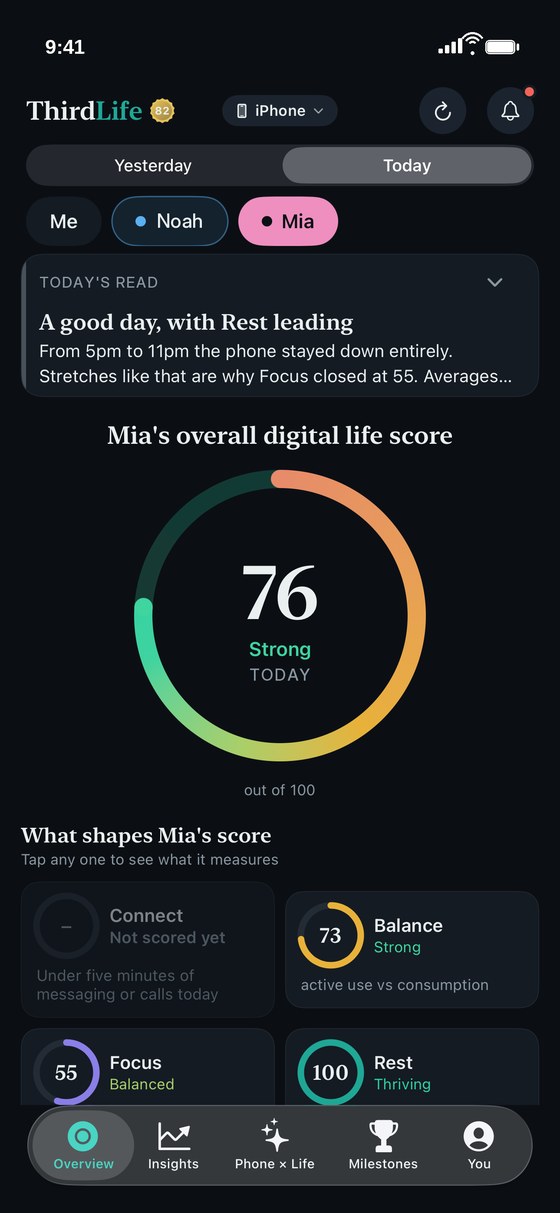
ThirdLife Overview on a parent's iPhone with Me, Noah and Mia at the top, showing Mia's overall digital life score of 76 and her Connect, Balance, Focus and Rest rings
Phone × Life

What a screen time total cannot tell you.

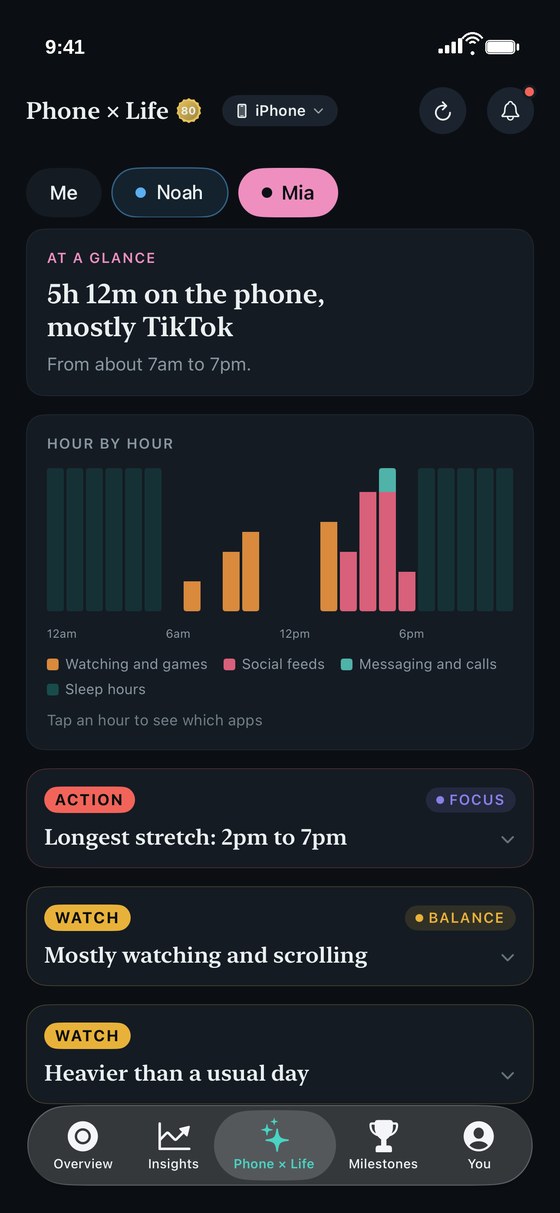
Five hours is a number. When those hours fell is the story. Phone × Life lays your child's phone beside the two parts of the day parents ask about most: school and bedtime.

ThirdLife Day view for a child, an hour by hour chart of phone use coloured by type with sleep hours shaded, and graded findings beneath

Their day, hour by hour

Each hour coloured by what the phone was used for, with sleep and school hours shaded in. Tap an hour to see the apps that filled it.
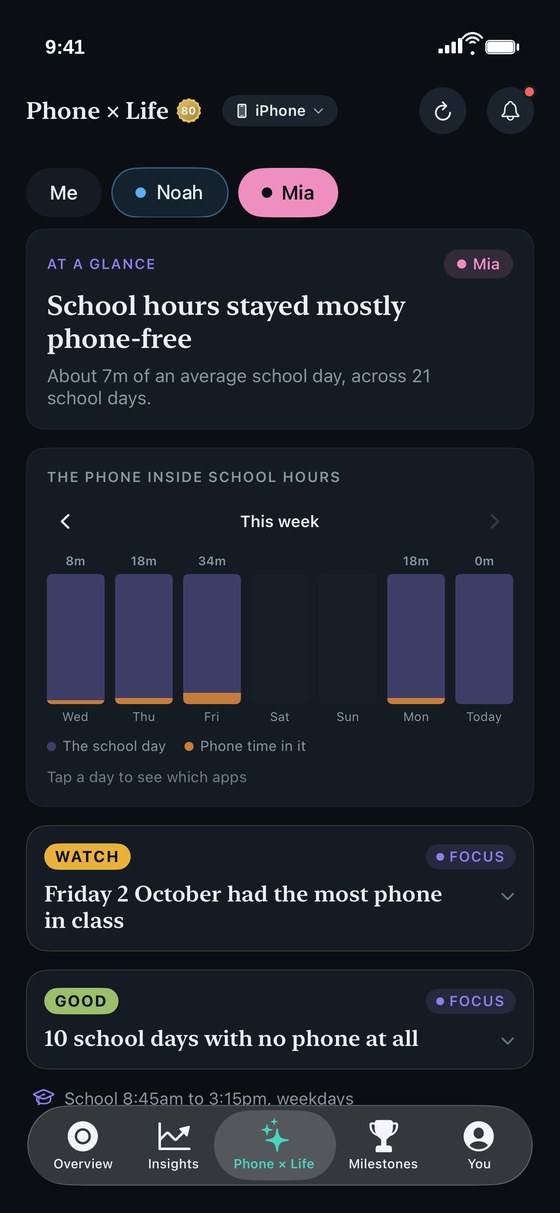
ThirdLife School view for a child, a weekly chart of phone time inside school hours with findings on the heaviest day and phone-free school days

The phone inside school hours

How much of each school day the phone was part of, which day was heaviest, and how many school days stayed phone-free. Tap a day to see the apps.
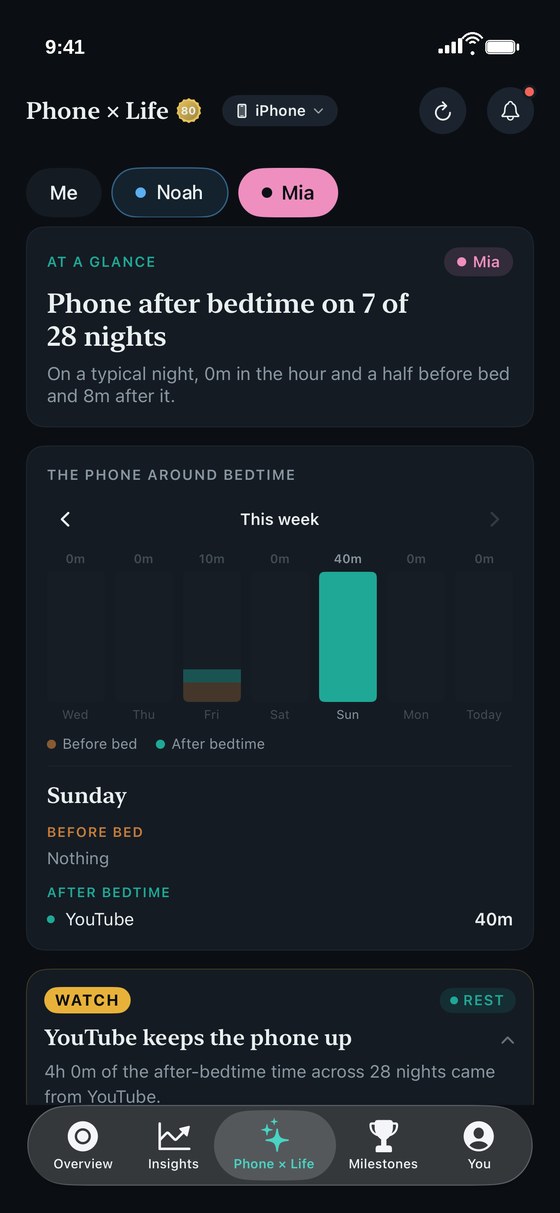
ThirdLife Sleep view for a child, a weekly chart of phone use before and after bedtime with the apps used after bedtime on Sunday

The phone around bedtime

Which nights the phone was used after bedtime, for how long, and which apps kept it up.

School hours and bedtime are the ones you set in ThirdLife. Your child's sleep itself is not measured or shown to you: this is their phone against the bedtime you chose.

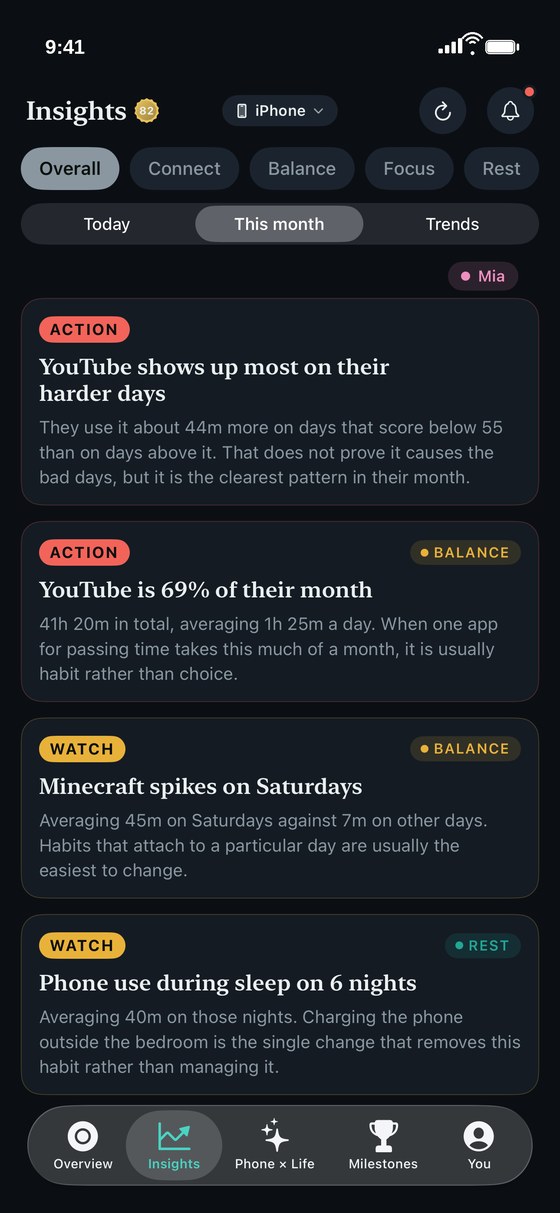
ThirdLife Insights for a child, this month's findings graded Action and Watch, naming YouTube, Minecraft and phone use during sleep
The month, graded. Named apps, real minutes, actual days.
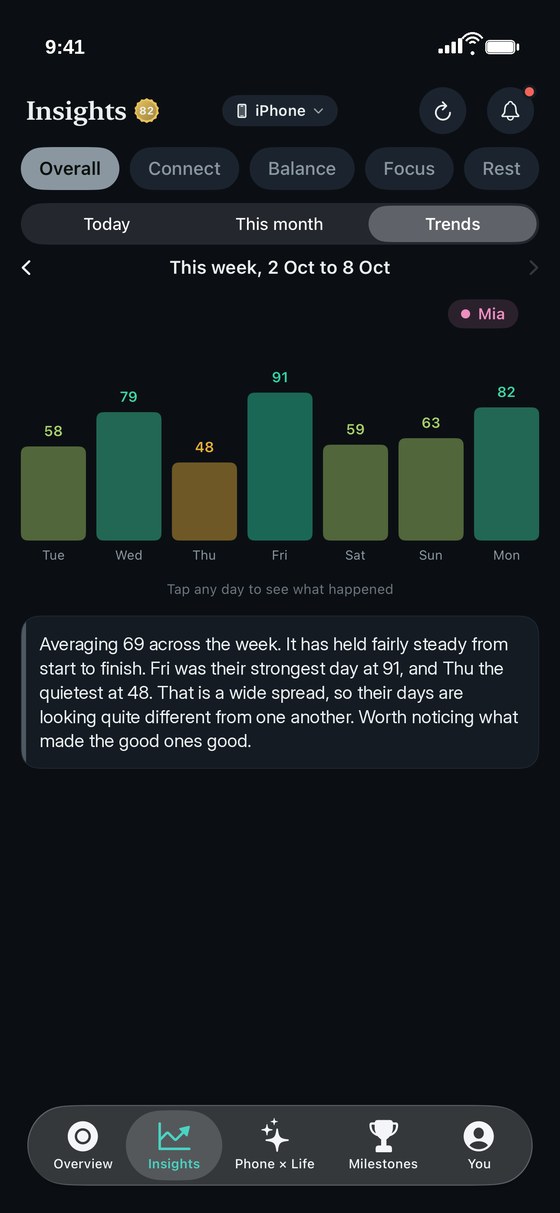
ThirdLife Insights trends for a child, one bar per day showing the overall score across the week
The week, a score for each day. Tap any day to see what happened.
Insights

Graded insights, so you know where to start.

Insights turns a month of phone use into a short list of findings, graded by how much they matter. Each one names the app, the minutes and the days, so it is specific enough to talk about.

ACTIONWATCHGOOD

And it says what it cannot prove. When one app shows up most on the harder days, ThirdLife tells you the two moved together, not that one caused the other.

How it differs

Parental controls answer how long. ThirdLife answers what it means.

Most tools built for parents do one of two things: they block, or they watch. ThirdLife does neither. It is built to give you something real to talk about.

Typical parental control appThirdLife
What you get backDaily totals, app lists and switches to block or pause.Findings graded by how much they matter, each naming the app, the minutes and the days.
The school dayUsually a schedule that locks the phone, with no picture of what happened.How much of each school day the phone was part of, which apps took it, and how many school days stayed phone-free.
BedtimeUsually a downtime schedule.Which nights the phone was used after the bedtime you set, for how long, and which apps kept it up.
Messages, browsing and locationMonitoring apps often collect some or all of these.Never. ThirdLife only sees what Apple's Screen Time records: which apps, and for how long.
Where the data goesOften to an account on the company's servers.It stays on your phone. No account, and nothing about your child is sent to us.
On your child's phoneOften a monitoring app that has to be installed and kept running.Nothing to install. It reads Screen Time through the Family Sharing group you already have.

ThirdLife is not a content filter and it does not track location. Apple's own Screen Time settings and Find My already do those, and ThirdLife works alongside them.

We suggest telling your children what you can see. It works best as something you look at together. Questions parents ask

Setup

Two steps, both in settings you already have.

Step 1

Family Sharing, with Screen Time on

In your iPhone's Settings, tap your name, then Family, and add your child. Tap their name, then Screen Time, and turn it on. They then appear in ThirdLife on their own.

Step 2

Their bedtime and school hours

In ThirdLife, go to You, then Children's bedtimes and school hours. Add each child by first name and choose their bedtime, wake time and school hours.

Then

Free for 14 days

Seeing your children is part of Premium. One subscription covers everyone in your Family Sharing group, with no per-child pricing. See pricing

A child appears once their Screen Time for the day has reached your phone, which can take a little while. Menu names vary slightly between iOS versions.

Available now

ThirdLife is on the App Store.

Free to download, with a paid tier for the deeper features. No account needed. Your screen time, health data and scores never leave your phone.

Download on the App Store